
Alex Morgan
Ecommerce Expert | 8+ years experience
Published
- 10 min read
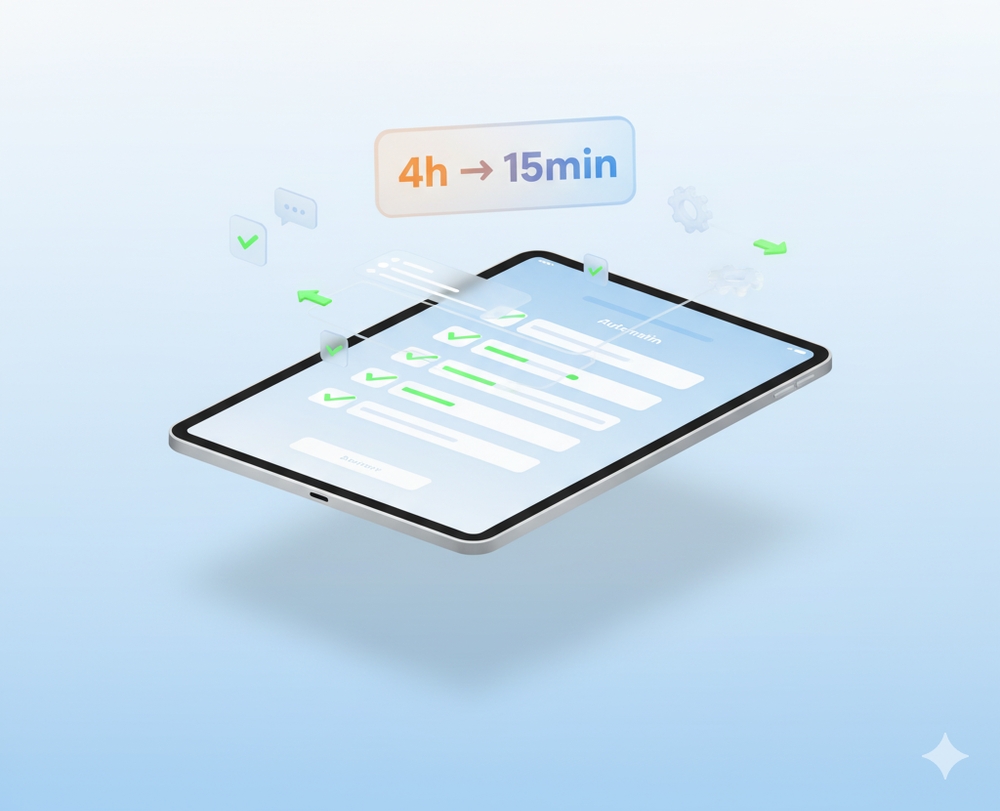
Automate Freelance Client Onboarding (4 Hours to 15 Minutes)
Affiliate Disclosure: This post contains affiliate links. If you click through and make a purchase, we may earn a commission at no additional cost to you. We only recommend products and services we genuinely believe in and have researched thoroughly.
Introduction
A freelance designer was spending 3-4 hours per new client on admin: sending contracts, collecting payments, scheduling kickoff calls, gathering brand assets.
We automated the entire onboarding flow—from signed contract to first draft—in under 24 hours. She now takes on 40% more clients without working more hours.
If you’re a freelancer losing billable time to admin work, this guide shows you exactly how to automate it.
The Real Cost of Manual Client Onboarding
Here’s what most freelancers deal with:
Per-Client Time Breakdown:
- Send proposal, wait for approval: 30 minutes
- Send contract, wait for signature: 45 minutes
- Send invoice, wait for payment: 30 minutes
- Schedule kickoff call (back-and-forth): 45 minutes
- Send questionnaire, wait for responses: 30 minutes
- Request brand assets, follow up: 45 minutes
- Total: 3-4 hours per client
The Hidden Costs:
- Delays between each step = frustrated clients
- Constant context switching = lost focus
- Can only handle 8-10 clients/month max
- Lost billable hours = $500-1,000/week
For a designer charging $2,000-5,000 per project, those 4 hours could be spent on actual design work or landing another client.
The Manual Workflow (What Most Freelancers Do)
Here’s the typical process that kills your productivity:
- Client says “yes” → Manually create contract from template
- Send contract → Email with DocuSign link → Wait
- Contract signed → Manually create invoice → Email Stripe link → Wait
- Payment received → Manually send Calendly link → Wait for booking
- Call booked → Manually send questionnaire → Wait for responses
- Day before call → Manually request brand assets → Follow up if missing
- Day of call → Scramble to review everything they sent
Each step requires you to remember, check, and manually trigger the next action. Miss one step and the client experience suffers.
Sound exhausting? Let’s fix it.
The Automated Solution: Complete Workflow
Here’s the system I built for a Dubai-based freelance brand designer. From “yes” to kickoff call, everything happens automatically in 24 hours.
Tools You’ll Need
- Notion (client portal + database)
- DocuSign or PandaDoc (contracts)
- Stripe (payments)
- Calendly (scheduling)
- Google Forms (questionnaire)
- Dropbox or Google Drive (file collection)
- Zapier or Make.com (automation)
Total Cost: $30-50/month
Step 1: Proposal Accepted Trigger
What Happens:
- Client says “yes” to proposal (via email or project management tool)
- Triggers entire onboarding sequence automatically
Instant Email:
Hi [Client Name]! 🎉

Excited to work with you on [Project Name]!

Here's what happens next:

Step 1: Sign your contract (takes 2 minutes)
Step 2: Pay 50% deposit (secure payment link)
Step 3: Book your kickoff call
Step 4: Fill out project questionnaire

I've sent the contract to your email. Once signed,
everything else will follow automatically.

Looking forward to creating something amazing together!

- [Your Name]
Step 2: Contract Signing (Automated)
What Happens:
- DocuSign contract sent automatically within 60 seconds
- Contract includes: Scope, timeline, payment terms, deliverables, revision policy
Contract Email (Auto-Generated):
Subject: Your Contract for [Project Name]

Hi [Client Name],

Your contract is ready to sign!

[Sign Contract Button]

This takes about 2 minutes. Once signed, I'll send
your payment link immediately.

Questions? Just reply to this email.

- [Your Name]
Why This Works:
- No manual contract creation
- Client can sign from phone
- Legally binding e-signature
Step 3: Payment Collection (Triggered by Signature)
What Happens:
- Contract signed → Stripe invoice sent automatically (within 60 seconds)
- Invoice includes: 50% deposit, payment options (card, bank transfer, PayPal)
Payment Email (Auto-Generated):
Subject: Invoice for [Project Name] - 50% Deposit

Hi [Client Name],

Great! Your contract is signed.

Next step: Pay your 50% deposit to get started.

Total Project: $[Amount]
Deposit Due: $[50% Amount]

[Pay Invoice Button]

We start as soon as payment clears (usually instant).

- [Your Name]
Why This Works:
- No manual invoice creation
- Multiple payment options
- Instant payment confirmation
Step 4: Kickoff Call Scheduling (Triggered by Payment)
What Happens:
- Payment received → Calendly link sent automatically
- Calendly syncs with your Google Calendar (no double-booking)
Scheduling Email (Auto-Generated):
Subject: Let's Schedule Your Kickoff Call

Hi [Client Name],

Payment received! ✅

Now let's schedule your kickoff call:

[Book Your Call Button]

Choose any time that works for you. I have slots
available this week.

After booking, you'll get a project questionnaire
to fill out before our call.

- [Your Name]
Why This Works:
- No back-and-forth scheduling
- Client picks time that works for them
- Automatic calendar sync
Step 5: Pre-Call Questionnaire (Sent with Calendly Confirmation)
What Happens:
- Call booked → Google Form sent automatically
- Responses saved to Notion client database
Questionnaire Email (Auto-Generated):
Subject: Your Kickoff Call is Confirmed! ✅

Hi [Client Name],

Your kickoff call is confirmed:

📅 [Date] at [Time]
📞 Zoom Link: [Link]

Before our call, please fill out this quick questionnaire:
[Questionnaire Link]

This helps me prepare and make the most of our time together.

Questions to expect:
- What's your brand personality?
- Who's your target audience?
- What are 3 brands you admire?
- What are your must-haves for this project?

See you on [Date]!

- [Your Name]
Questionnaire Questions:
- What’s your brand personality? (playful, professional, luxury, minimal, bold)
- Who’s your target audience? (age, interests, pain points)
- What are 3 brands you admire design-wise? (and why)
- What are your must-haves for this project?
- What should we absolutely avoid?
- Upload your logo, brand colors, fonts (if available)
- Any inspiration images or examples?
Why This Works:
- Responses auto-populate Notion
- You show up to call fully prepared
- Client feels heard before call even starts
Step 6: Asset Collection (Automated Reminder)
What Happens:
- 24 hours before call → Email reminder to upload assets
Asset Reminder Email:
Subject: Quick Reminder: Upload Your Brand Assets

Hi [Client Name],

Our call is tomorrow at [Time]!

Quick reminder: Please upload any brand assets to this folder:
[Dropbox/Google Drive Link]

What to include (if you have them):
- Logo files
- Brand colors (hex codes)
- Fonts
- Existing designs
- Photos/images

Don't have everything? No problem! We'll work with what you have.

See you tomorrow!

- [Your Name]
Why This Works:
- Gentle reminder without being pushy
- Client has time to gather materials
- Reduces “I forgot” excuses
Step 7: Kickoff Call (With Pre-Populated Notes)
What Happens:
- Designer opens Notion → Client profile auto-populated with:
- Questionnaire responses
- Uploaded assets
- Contract details
- Payment status
- Project timeline
Notion Client Portal Structure:
Client: [Name]
Project: [Project Name]
Status: Kickoff Call Scheduled

Contract: ✅ Signed on [Date]
Payment: ✅ 50% Deposit Received
Kickoff Call: [Date] at [Time]

Brand Personality: [Response]
Target Audience: [Response]
Brand Inspirations: [Response]
Must-Haves: [Response]
Assets Uploaded: [List]

Timeline:
- Kickoff Call: [Date]
- First Draft: [Date + 7 days]
- Revisions: [Date + 14 days]
- Final Delivery: [Date + 21 days]
Why This Works:
- No scrambling before call
- Professional, organized impression
- Call focuses on creative discussion, not admin
Step 8: Post-Call Automation
What Happens:
- Call ends → Automatic email with next steps
Post-Call Email:
Subject: Great Call! Here's What's Next

Hi [Client Name],

Thanks for the great call today!

Here's what happens next:

📅 First Draft: [Date]
📝 Revision Rounds: 2 included
🎯 Final Delivery: [Date]

Track progress anytime in your client portal:
[Notion Link]

You'll get an email when the first draft is ready.

Questions? Just reply to this email.

- [Your Name]
Why This Works:
- Client knows exactly what to expect
- No “when will I hear from you?” emails
- Professional follow-through
Step 9: Project Tracking (Client Portal)
What Happens:
- Client has access to Notion page with:
- Timeline with checkboxes
- Deliverables list
- File uploads (drafts, revisions)
- Feedback form
- Communication log
Client Portal View:
[Project Name] - Client Portal

Timeline:
✅ Contract Signed
✅ Deposit Paid
✅ Kickoff Call Complete
⏳ First Draft (Due: March 15)
⬜ Revision Round 1
⬜ Revision Round 2
⬜ Final Delivery

Deliverables:
- Logo (primary + variations)
- Brand colors + typography
- Brand guidelines PDF

Files:
[First Draft - Uploaded March 15]
[Revision 1 - Uploaded March 20]

Feedback:
[Submit Feedback Form]
Why This Works:
- Client can check progress anytime
- No “what’s the status?” emails
- Transparent, professional process
Real Results: Dubai Freelance Brand Designer
I built this system for a freelance brand designer in Dubai who was turning down clients because onboarding was too time-consuming. Here’s the transformation:
Before Automation:
- Time per client: 4 hours on onboarding admin
- Clients per month: 8 max
- Client complaints: “Slow to get started”
- Missed billable hours: 32 hours/month = $3,200 lost (at $100/hour)
- Stress level: High (constant follow-ups)
After Automation:
- Time per client: 15 minutes (just kickoff call prep)
- Clients per month: 12 comfortably
- Client feedback: “Most professional onboarding I’ve experienced”
- Recovered time: 30 hours/month = $3,000 extra revenue
- Stress level: Low (system handles everything)
Financial Impact:
- Extra capacity: 4 additional clients/month
- Additional revenue: $8,000-12,000/month (at $2,000-3,000 per project)
- System cost: $30/month (DocuSign + Calendly + Zapier)
- ROI: 267x
Designer’s Feedback: “I used to spend half a day onboarding each client. Now they sign the contract at 10pm, pay the invoice, book their call, and fill out the questionnaire—all before I wake up. By the time I check my email, they’re fully onboarded and I’m ready for the kickoff call. It feels like working with an agency, not a solo freelancer.”
Advanced Features (Optional)
Once you have the basics running, consider adding:
1. Automated Project Updates
- Weekly email: “Your project is on track! First draft coming [Date]“
- Milestone notifications: “First draft is ready for review!“
2. Revision Tracking
- Client submits feedback via form
- Automatically creates revision task in Notion
- Tracks revision count (alerts if exceeding included revisions)
3. Final Delivery Automation
- Final files uploaded → Client gets download link
- Automatic request for testimonial
- Automatic invoice for remaining 50%
4. Referral Program
- Happy client → Automatic email: “Know someone who needs design? Get 10% off your next project for each referral”
5. Post-Project Follow-Up
- 30 days after delivery: “How’s the new brand working out?“
- 90 days: “Need any updates or additional materials?”
DIY vs. Custom Build: What You Need to Know
You Can Build This Yourself If:
- You’re comfortable with Zapier/Make.com basics
- You have 4-6 hours to set it up
- You’re taking on 5-10 clients/month
- You’re okay with basic automation
DIY Setup Time: 4-6 hours one-time
You Need Custom Build If:
- You’re taking on 15+ clients/month
- You want advanced features (revision tracking, automated updates)
- You need integration with specific tools (Asana, ClickUp, etc.)
- You want white-labeled client portal
- Your time is worth more than $75/hour
Cost Breakdown:
- DIY: 6 hours of your time + $30-50/month tools
- Custom Build: $800-1,500 one-time + $30-50/month tools
- Payback Period: 1 month (from extra client capacity)
Common Challenges and Solutions
”What if clients prefer phone calls to forms?”
Include in your onboarding email: “Prefer to discuss over the phone? Book a quick 15-min call here: [Calendly]"
"What if they don’t fill out the questionnaire?”
Send automated reminder 24 hours before call: “Quick reminder: Please fill out the questionnaire so we can make the most of our call tomorrow."
"What if payment fails?”
Stripe automatically retries failed payments and sends reminders. You get notified if payment fails after 3 attempts.
”What about rush projects?”
Add “Rush Project” option in Calendly that triggers expedited workflow (call within 24 hours instead of choosing time).
Getting Started: Your Action Plan
Week 1: Setup Foundation
- Set up Notion client portal template
- Create DocuSign contract template
- Set up Stripe products/invoices
- Create Calendly booking page
Week 2: Build Core Automation
- Connect DocuSign to Zapier
- Trigger Stripe invoice on contract signature
- Trigger Calendly link on payment
- Test with mock client
Week 3: Add Questionnaire and Assets
- Create Google Form questionnaire
- Connect responses to Notion
- Set up Dropbox/Drive folder
- Add asset reminder automation
Week 4: Optimize
- Test full workflow with real client
- Adjust timing of automated emails
- Refine questionnaire based on responses
- Add post-call automation
Conclusion
Automating client onboarding isn’t about removing the personal touch—it’s about removing the tedious admin so you can focus on the creative work you love.
The designer I worked with told me: “I used to dread onboarding new clients. Now it’s my favorite part because I know the system handles everything perfectly. Clients are impressed, I’m less stressed, and I have time to actually design instead of chasing signatures and payments.”
If you’re spending more than 2 hours per client on onboarding, this system will pay for itself with your first automated client.
Want the exact Notion template + Zapier blueprint? I’ve created a free starter pack with the client portal structure and automation workflows. Drop your email below and I’ll send it over.
Freelancer struggling with client onboarding? Drop a comment below or reach out—I’m happy to help point you in the right direction.
Related AI Automation Guides
Get More Tips & Insights
Join our newsletter for weekly updates on the best tools, side hustles, and strategies to grow your business and income.
No spam. Unsubscribe anytime.